
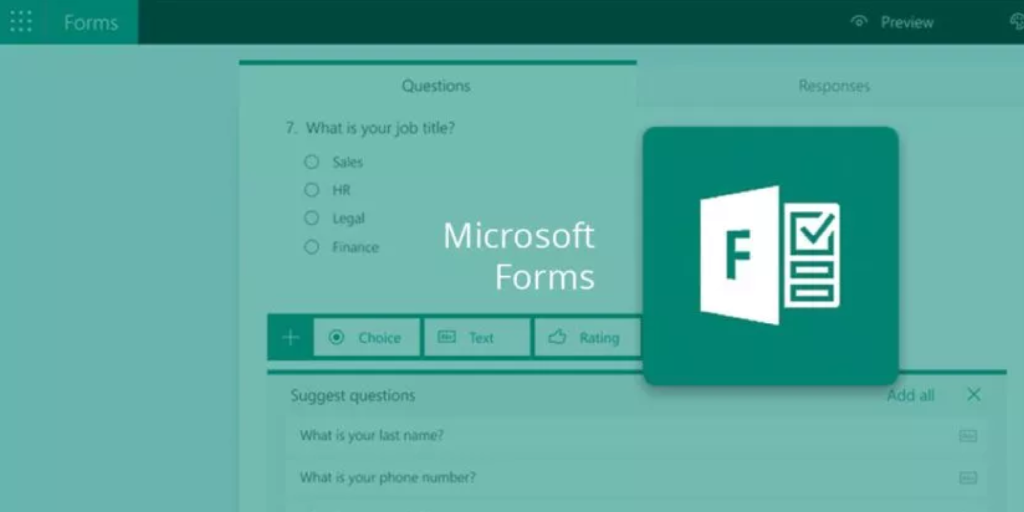
How Washington DC Organizations Can Use Microsoft Forms to Improve Workflow for Their Microsoft 365 Business Users

For associations and nonprofits in Washington DC, staying on top of program and service delivery, internal processes, stakeholder communication, and event planning feels like a constant balancing act. With limited time and resources, it’s no easy feat.
Luckily, if your organization uses Microsoft 365 Business, you already have access to a range of tools that can help you streamline everyday tasks.
People often ask our team’s experts for Office 365 tips to improve how they navigate their systems. Our go-to answer is Microsoft Forms, a straightforward, flexible built-in tool for collecting and organization that saves time and brings order to any environment. Busy teams love using this option to get an easy win and get more done with less effort.
In this article, we’ll explore how to use Microsoft Forms to improve your organization’s workflow, make data collection a lot simpler and boost productivity within the Microsoft apps you use daily.
What is Microsoft Forms and How Does It Work?
Microsoft Forms is a user-friendly application included in every Office 365 subscription and accessible to anyone with a Microsoft account.
This basic and intuitive online tool lets you make simple forms to collect information, ask questions and get answers without needing fancy software or deep tech skills. It’s a useful way to gather opinions or information from multiple people! Best of all, recipients don’t need to be Office 365 customers to fill out your form.
Curious how to use Microsoft Forms? Just follow these steps:
- Open Microsoft Forms and click New Form.
- Choose your question type, like multiple choice, text, rating, or date.
- Type your question and add response options if needed.
- Click the Preview button to see how your form will appear on both desktop and mobile devices. Make any adjustments needed to ensure it looks just right.
- Once everything’s set, click Share to generate a link. You can send the link via email, drop it into a Microsoft Teams chat, or post it anywhere you’d like.
- See your responses! Head over to the Responses tab to see your survey results as they roll in. For deeper analysis, export the data directly to an Excel spreadsheet.
Top Microsoft Forms Features for Microsoft 365 Users in Washington DC
If your team is already using Microsoft 365, Forms is one of the simplest ways to streamline communication and cut down on back-and-forth. To show you what we mean, let’s take a closer look at some of the specific features and functionalities that make it so useful.
Built-in AI and Smart Recommendations
Just like with the rest of the Microsoft 365 ecosystem, Microsoft introduced embedded Copilot, their virtual AI assistant, into Microsoft Forms in 2024.
Copilot uses AI to create structured surveys, polls, and quizzes from simple prompts. You can also ask it to refine question clarity, improve layout, and recommend design options to keep participants engaged.
But since its introduction into Forms, Copilot has also evolved into a more dynamic assistant. It doesn’t just create forms for you, but will actively guide a form’s entire lifecycle. The latest update introduced agentic features that empower Copilot to take initiative in actively managing forms. It can now send your form for you, track response progress, even sending reminders to non-respondents when needed.
Integration with other Microsoft 365 Applications
Something that users find super helpful is that Microsoft Forms ties in with other Microsoft 365 apps. You can collect responses, share results, and take action without leaving the tools you already use. Less jumping between programs, more time spent getting things done!
Curious how this works? Here are a few examples:
- Excel Online: Automatically log responses in a connected spreadsheet
- PowerPoint & OneNote: Embed quizzes or forms to make presentations or notes interactive
- Teams: Poll participants in meetings or add forms to channels for ongoing input
- Outlook: Create and send polls directly in emails
- Power Automate: Trigger workflows like alerts or data routing based on form responses
- SharePoint & OneDrive for Business: Store, share, and manage forms within shared team spaces
Customization and Templates
Feeling a little lost or struggling with writer’s block? Don’t worry, there’s no need to start your form from scratch! Built-in Microsoft Forms templates are available to match common scenarios that most organizations encounter, like customer feedback, event registration, quizzes, and employee satisfaction surveys.
These templates come prefilled with example questions and layouts, so you can save time by starting with ready-to-use structures and keeping frequently used forms consistent.
Once you’ve selected a template, Forms lets you customize your form to your needs and audience.
You can:
- Edit or remove preloaded content
- Add various question types (choice, text, rating, date, etc.)
- Use branching logic in surveys to show or hide questions based on answers
- Adjust theme colors and background images to match branding
- Reorder items to guide the flow of responses more effectively
- Add sections to break up long forms and keep them better organized
Data Visualization
Microsoft Forms provides basic visualization tools that help users quickly understand the responses that recipients submit to your form. Within the Responses tab, you’ll see automatic charts—like bar graphs for multiple-choice questions—and word clouds for text entries when there’s enough data. These visuals offer percentage breakdowns and counts at a glance. There’s also an Insights feature that flags notable trends or common answers to your quizzes in Microsoft Forms, so you can quickly get context about responses.
For more advanced visualizations, you can export the form data to Excel and use features like pivot tables and custom charts or use Power BI or Power Automate for real-time dashboards and deeper analytics.
Real-World Ways DC Organizations Put Microsoft Forms to Work
Wondering how your organization can put this tool into practice? We’ve got a few ideas for you:
- Gather internal feedback: Create surveys in Microsoft Forms to ask people what they think and improve your operations. Within just a few minutes, it’s easy to check in with staff or volunteers about internal processes, workplace culture, or training needs. Then, you can use the application’s reporting and data visualization features to track trends over time.
- Source external input, too: You can also collect feedback with Microsoft Forms from the people your organization serves. After an event, service interaction, or program evaluation, a short survey can tell you what worked well and where you might improve. And Forms makes it easy to build and send!
- Streamline operations: Here’s where forms and surveys for nonprofits makes a big difference. Use this tool to automate a wide range of tasks, from event registrations and community workshops to supply requests or incident tracking. It’s a simple way to keep projects and operations moving and give your team more time to focus on mission-driven work.
Want More Microsoft 365 Tips? We’re Here to Help
Microsoft Forms makes it easy to gather feedback, manage requests, and streamline routine tasks. No paper forms or long email threads needed! The option to access real-time results helps you act faster and spot trends without extra back-and-forth. And because it integrates with the Microsoft 365 productivity tools your team already uses, you will save time and energy.
This Microsoft Forms guide just scratches the surface of what’s possible for using technology to make your work life a little easier. If you’re looking to get more out of Forms or better manage your Microsoft 365 environment, designDATA is here to help. Our team specializes in managed IT services for non-profits to help organizations in Washington DC get the most out of their Microsoft 365 tools.
Get in touch to learn how we help teams use Microsoft 365 more effectively.