
Microsoft Planner in Teams: Boost Productivity for Microsoft 365 Business Users in Washington DC

For associations and nonprofits particularly, the need for seamless, integrated collaboration tools and productivity solutions is only growing.
Modern workplaces demand a lot from employees. With so many tools designed to boost efficiency, teams often find themselves juggling very long, constantly expanding to-do lists. All while also managing a maze of platforms, data, and communication channels.
Keeping track of who’s doing what, and when, starts to feel like a job in itself. And without a clear, shared system, it’s easy to miss deadlines, duplicate efforts and get frustrated.
Wondering how to simplify your process? Many local organizations have found that Microsoft Planner, especially when used within Microsoft Teams, has had a meaningful impact.
In this guide, we’ll break down what this tool is and provide expert-backed Microsoft Planner tips to help Microsoft 365 Business Users in Washington, D.C. get more from their digital workspaces.
First of All, Why Does Task Management Matter for Your Organization?
There’s nothing worse than realizing you missed a key deadline because no one wrote it down. Good task management is the key to operational success (and your day-to-day happiness and workplace satisfaction!)
Having a clear system makes sure nothing falls through the cracks. When you plan, track and keep tabs on a work project from start to finish, teamwork goes smoother and collaboration feels more enjoyable.
And that starts with making task lists and progress visible to your whole team, so everyone can see what needs attention, make quicker decisions, understand their responsibilities, and stay accountable.
This is especially true when it comes to hybrid or remote work task management. Teams that aren’t in the same room also need an easy way to stay connected and on the same page. A well-organized approach to getting work done keeps projects moving forward and achieving your goals.
What Is Microsoft Planner?
This task and project management tool within the Microsoft 365 productivity tools ecosystem pulls together features from Microsoft To Do, Project, and Copilot to offer a single, unified space.
Users can access three main views:
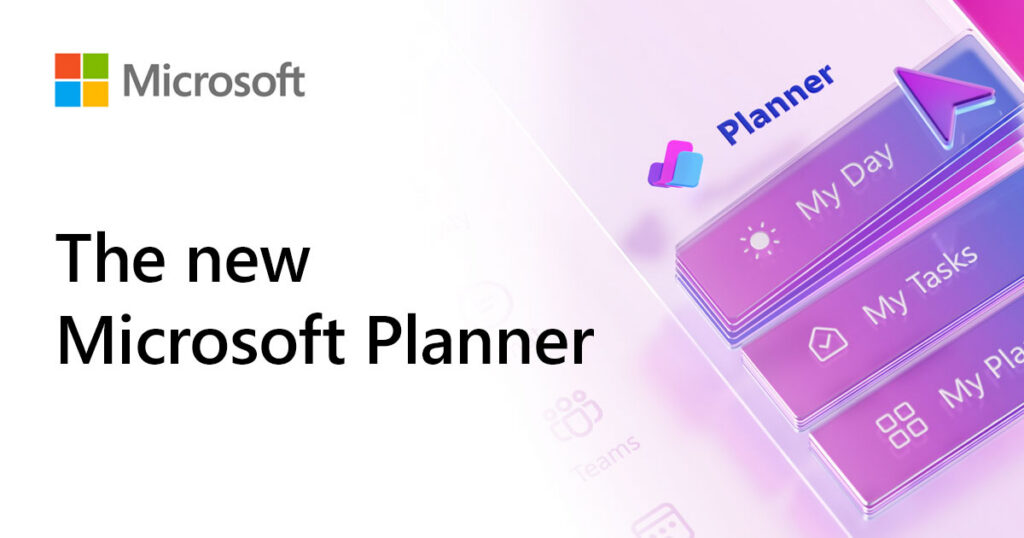
- My Day: Think of this as your morning briefing. You just see the tasks that matter today, front and center, so you’re always ready to hit the ground running.
- My Tasks: Your personal command center. Look at everything you’re responsible for across all your plans in a neatly lined-up space that sorts everything by date.
- My Plans: This is where teamwork lives. It’s a shared space to build, organize, and tackle projects together with your colleagues.
Some organizations like to use tools like Trello or Asana for task management. While these work well for many needs, one advantage to Planner is how tightly it fits into other Microsoft services. It syncs with Outlook, Teams, and Excel without extra setup.
What about Microsoft Planner vs To Do? To Do is designed for personal task lists, while Planner supports shared boards and collaborative work. That said, learning how to use Planner and To Do together lets you connect your individual tasks with team-wide planning, and make work feel much more cohesive. For Washington DC organizations already using Microsoft 365 Business productivity solutions, Planner bridges the gap between personal and team task management.
What are the key features of Microsoft Planner?
Let’s start with the basics: what exactly is a “plan” in Microsoft Planner?
A plan is the top-level container for organizing work. It typically would represent an overarching project or initiative, or perhaps different teams, goals or workflows. Each plan has its own board, members, buckets, and tasks.
Tasks are the actionable items within a plan and form the building blocks of your workflow. Each task appears as a card on the board, with various features for managing the small details:
- Checklists for subtasks
- Attachments like files and links for easy access
- Comments for collaboration and feedback
- Labels for categorizing and filtering tasks (think things like “Urgent”, “Admin”, or “Marketing.”
- Start and due dates for scheduling
Buckets group tasks within a plan, like stages or categories. For example, you can use buckets to organize tasks by phase (e.g., To Do, In Progress, Done) or by department.
You can view all these plans, tasks, and buckets in various formats, including the traditional Kanban style. But if you’re more timeline-focused, switch to Schedule view. You’ll see your tasks on a calendar so you can plan ahead and avoid overlaps. Prefer visuals? The Charts view provides a high-level summary of progress, priorities, and assignments, allowing you to easily see where things stand at a glance.
How Microsoft Planner Integrates with Teams
The best part about Microsoft Planner is that you don’t have to open a separate browser tab to access it. You can use Microsoft Teams and Planner together to keep all your communication and task tracking in one place.
There are two ways you can do it:
- Dedicated Tab: Users have the option to add Planner as a dedicated tab within any Teams channel. No need to leave the conversation! Assign tasks directly from the Teams interface, complete with due dates, priority tags, and assignment details.
- Integrated Application: You can also use Planner as a standalone app pinned to your sidebar. Get a unified view of all your tasks across multiple plans, so you can manage your workload without jumping between tools.
Planner also integrates with Outlook! Task deadlines sync with your calendar, letting you view meetings and to-do items side by side. You can even set up email notifications for task assignments, comments, or due date reminders to stay on top of updates. (Just be sure to check your “Other” tab in Outlook! Planner alerts sometimes land there.)
This deep integration is such a helpful way to maximize Teams productivity tools and simplify day-to-day task tracking.
How Planner Helps Busy Organizations Manage Projects in Microsoft Teams
Various environments, contexts, and roles could benefit from doing their task tracking in Teams and using Planner to streamline workflows with their Microsoft tools:
- Programming and Event Planning: Manage projects in Microsoft Teams throughout the entire process with the ability to set clear milestones and assign responsibilities directly within Planner. Everyone will know what to do and when, which means fewer roadblocks when it’s time to act.
- Human Resources: Why not use Tasks to create onboarding and offboarding checklists within Planner? That way, no critical steps are missed when employees join or leave the company.
- Marketing: Planner is a great tool for organizing content calendars and campaign tasks. And integrating these plans into Teams means deadlines, assignments, and updates stay visible and accessible.
Bonus tip for how to use Planner in Teams effectively: regularly review Tasks and Plans during your weekly all-hands meeting. If you don’t talk to each other about your organization’s expectations for Microsoft and Office 365 task management, alignment falls apart. Without that shared understanding, meaningful progress becomes difficult.
Partner With designDATA to Work Smarter
Microsoft Planner is a straightforward yet powerful task management tool that helps teams stay organized and communicate clearly — especially when used inside Microsoft Teams. With the ability to assign responsibilities, track progress, and manage timelines, Planner adds structure to your workflow and helps bring clarity to your day-to-day operations. It’s a smart addition to any team already using Microsoft productivity apps.
If you’re a Microsoft 365 Business user in Washington, DC looking to improve how your team works, or if you need expert guidance on managing your overall IT environment, designDATA is ready to support you. We help organizations get more out of their tools and build systems that actually work for their people.
Contact us to discover how our productivity solutions can help you leverage tools like Microsoft Planner in Teams for better collaboration and project success.